
Home Wi-Fi Too Slow? A Router Speed-Fix Checklist
If Netflix keeps buffering, your video calls turn into a blur, and the Wi-Fi drops the moment you walk into a back room, your internet plan probably isn't the only thing to blame. Even on the same line, where you put your router and how you set it up can dramatically change the speed you actually feel. Before you spend money on pricey new gear, here are the things you can check on the router you already own, laid out in order.
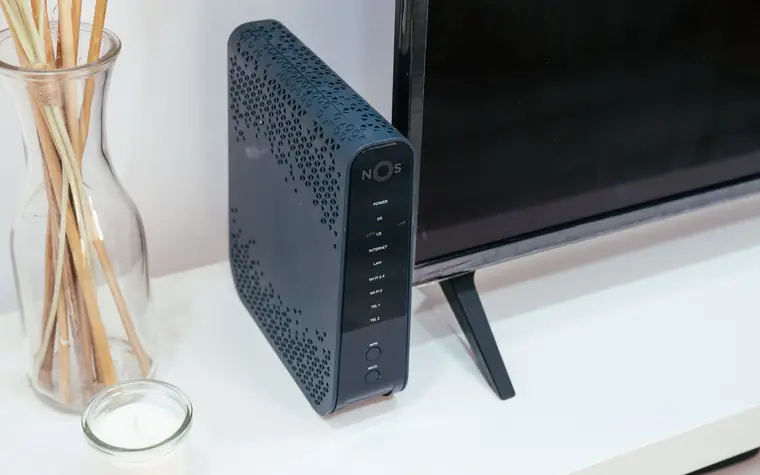
Start by Moving the Router
Wi-Fi signals are invisible, but they are physical radio waves. When they hit walls, furniture, or objects that hold a lot of water, they weaken sharply. That's why simply changing the router's location often produces a noticeable speed boost.
- Place it in the center of your home. That's the baseline. If you tuck it away in the entryway shoe cabinet or a corner of one room, the far side of your home is bound to get a weak signal.
- Set it up somewhere high. Radio waves meet fewer obstacles when they spread downward from above. A shelf beats the floor or the space under a desk.
- Keep it away from microwaves and cordless phones. Microwaves in particular emit waves that overlap with the 2.4GHz band, so they can cause interference every time they run.
- Fish tanks, large mirrors, concrete load-bearing walls, and metal furniture also block signals heavily. Arrange things so none of these sit between the router and the spots where you use it most.
- If your model has antennas, angle one vertically and one horizontally so the signal reaches devices at various angles evenly.
2.4GHz vs. 5GHz: Which to Use
Most routers today broadcast two bands at once. If you see two similar names in your Wi-Fi list, one of them is the 5GHz band. The two behave differently, so the key is choosing the right one for the situation.
- 2.4GHz reaches farther and passes through walls well. In return, its speed is relatively low, and it gets congested easily because its band overlaps with nearby devices. It suits rooms far from the router or environments with several layers of walls.
- 5GHz is fast and less prone to interference. In return, the signal weakens quickly over distance or through walls. It suits a living room close to the router, or situations where speed matters, such as high-definition streaming or gaming.
In short, the basic rule is 5GHz when you're close and 2.4GHz when you're far. Deliberately giving the two bands different names (SSIDs) is convenient because you can pick and connect to the right one for the moment. Conversely, some setups merge the two bands under a single name and let the device automatically grab the better one, but in that case a device may cling to its current band even after the signal has weakened, so if one particular room is oddly slow, splitting the bands and choosing manually helps you pin down the cause. For reference, in a home where several people stream high-definition video and game at the same time, simply splitting the bands so that phones and laptops use 5GHz while distant Internet-of-Things devices use 2.4GHz can change how it feels.
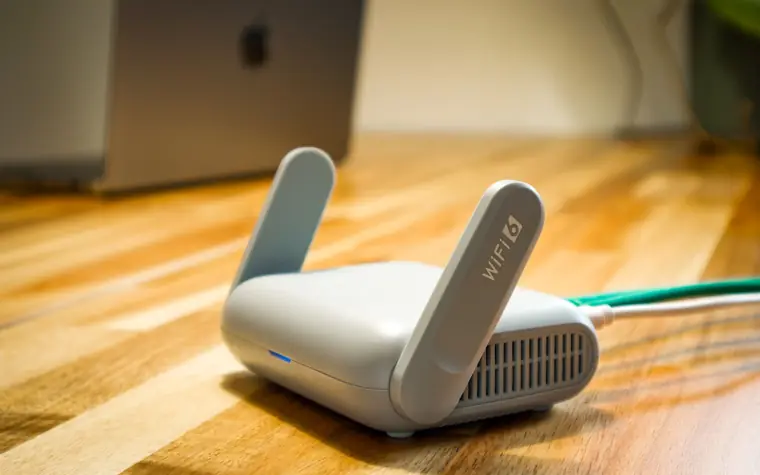
Channel Congestion and Firmware Checks
In densely packed housing like apartments or multi-unit buildings, it's common for your router to share a channel with a neighbor's and interfere with each other. When that happens, you can go into your router's settings screen and try changing the channel.
- Most routers have an automatic channel selection feature. First, check whether it's turned on.
- If it's still slow, change the channel manually one at a time and compare speeds. Simply avoiding a congested band can improve stability.
- Keep up with firmware updates too. Manufacturers release firmware that includes performance improvements and security fixes. You can check for the latest version in the management or system menu of the settings screen.
If you leave firmware unattended for a long time, known security holes stay open and can leave you exposed to outside intrusion. Along with setting a strong Wi-Fi password and using the latest security method, keeping firmware current is a basic part of a safe home network.
Rebooting, Device Overload, and Wired Connections
A router that's been left on for a long time can slow down as load builds up in its memory. If it suddenly got slow for no particular reason, unplugging it and turning it back on after a moment often restores it. If it still acts up after that, consider resetting it in the settings screen and reconfiguring.
The number of connected devices is another variable. When not just your phone and laptop but also your TV, speakers, robot vacuum, and various Internet-of-Things devices all pile onto one router, everything can slow down as they split the bandwidth. Disconnecting devices you aren't using, or making a wired connection with a LAN cable for fixed devices like a desktop or TV, frees up room on the wireless band. Wired connections are more stable than wireless and have no interference, so they're especially advantageous for tasks where dropouts are fatal, such as online gaming or large uploads.
The router's own lifespan is also worth a look. Older models can't support the latest Wi-Fi standards, so no matter how much you tweak placement and settings, performance may hit a ceiling. If you've gone through all the checks above without improvement and the number of connected devices has grown, replacing it with a router that supports the latest standard can be the fundamental fix. That said, checking placement, band, channel, and firmware before buying new gear is the order that saves money.
Common Mistakes
- Hiding the router in a corner. Putting it inside a cabinet for the sake of decor blocks the signal.
- Using only 5GHz no matter what. In a distant room, 2.4GHz can actually be more stable.
- Never once updating the firmware. It hurts not only speed but security.
- Blaming everything on the router when it's a line problem. Connecting directly by cable and measuring the speed lets you tell whether the line itself is the issue.
- Leaving the password at the default or a simple number. Unauthorized access by neighbors or outsiders can slow you down.
Frequently Asked Questions
How often should I reboot my router?
There's no set schedule, but if it's gradually slowing down or dropping connections often, a reboot helps. If there's no problem, there's no need to power it off and on frequently.
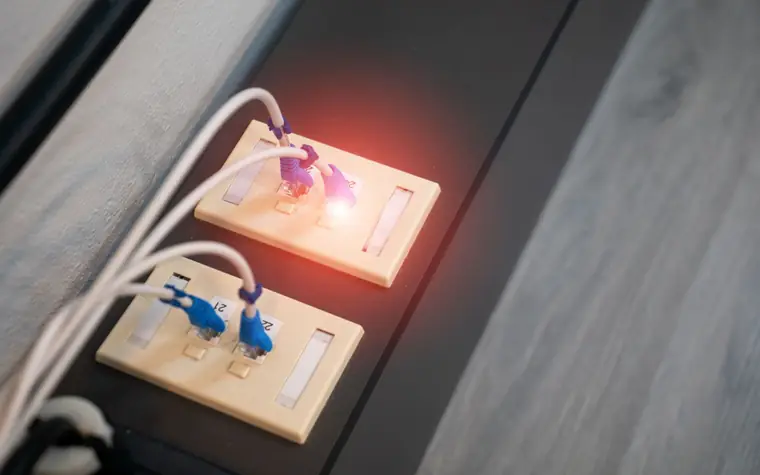
Will buying a Wi-Fi extender (repeater) solve it?
It helps if you have a large home or areas the signal doesn't reach. Still, the right order is to try basic checks like adjusting placement and changing the channel first, and only consider one if that's still not enough.
My speed is far below the plan I signed up for. How do I check?
First, plug a LAN cable directly into the router and measure the speed over a wired connection. If wired is fine but only wireless is slow, it's a router or environment problem; if wired is slow too, it may be the line itself or your plan, so it's best to contact your provider.
All content is fact-checked under our editorial standards.