
How to Fix a Full Smartphone — Free Up Space Without Deleting Photos
When the "Storage almost full" alert pops up, the first place your hand reaches is the photo album. But deleting photos and videos full of memories should be a last resort. In reality, the culprit eating up space is often not the photos themselves but app caches, media that messengers auto-saved, and duplicate downloaded files. Clean these up one by one in order and you can reclaim several gigabytes without deleting a single photo. Follow the steps below and you can free up space smoothly on any model, so when you're in a hurry, work through them steadily from the top.
First, Check What's Taking Up Space
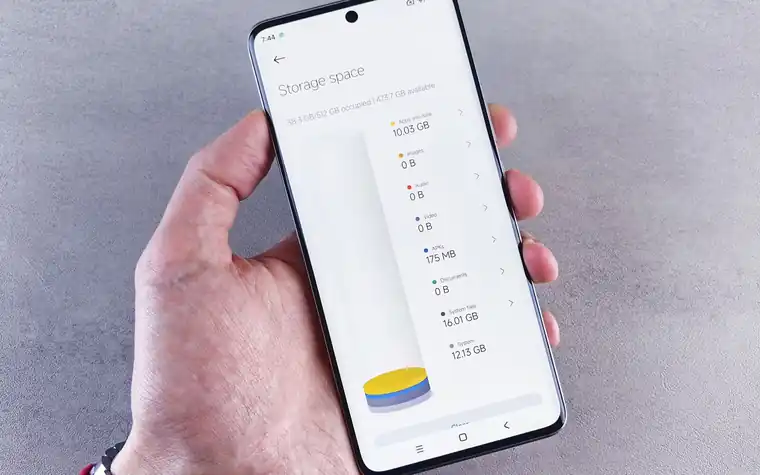
Before deleting blindly, diagnosing your storage comes first. On iPhone, going to Settings → General → iPhone Storage shows each app's usage as a bar graph, broken out into the app's "own size" and its "data (cache/documents)." On Android, depending on the model, you can go to Settings → Battery and device care → Storage (on Samsung Galaxy) or Settings → Storage, where images, videos, apps, and cache data are shown by category. Check which app is unusually large here, then start with that app — that's the efficient approach.
Clearing Cache — The Fastest Space to Reclaim
Cache is data an app temporarily piles up for quick launching. Deleting it doesn't erase login info or personal files, and when you reopen the app it rebuilds only as much as needed.
- Android: Settings → Apps → select the app → Storage → tap "Clear cache." "Clear storage (clear data)" resets even logins and settings, so clearing only the cache is safe.
- iPhone: iOS has no system-wide bulk cache-clearing menu. Instead, use each app's internal settings (e.g., a browser's "Clear History and Website Data"), or delete and reinstall a large app to also empty its accumulated cache.
Cleaning Up Media Saved by KakaoTalk and Messengers
Messengers automatically download and store the photos and videos you exchange. The more chat rooms you have, the more this snowballs. In KakaoTalk, under More (…) → Settings → Manage Storage, you can check and delete cache data and media files like music, videos, and photos by type. Inside a specific chat room, you can also pick out and delete just the photos piled up in that room via the chat drawer or menu. Before deleting, save any images you want to keep to your gallery or an album first.
Back Up to the Cloud and Clean Up the Originals
The reason photos feel too precious to "delete" ultimately comes down to not having a backup. If you first upload them safely to the cloud, you can empty the originals from the device with peace of mind.
- iPhone: Under your name at the top of Settings → iCloud → Photos, turn on "iCloud Photos" and choose "Optimize iPhone Storage," which keeps originals in the cloud and leaves only smaller versions on the device to save space.
- Android: Turn on backup in the Google Photos app, then run the "Free up space" feature for backed-up photos to clean up the device copies of photos already in the cloud.
Note that the free allotment has a limit, and exceeding it may require a paid plan, so also check the remaining space on your account.
Handling the Videos That Really Eat Space
It's common for a single few-minute video shot in 4K to take up more space than thousands of photos. If you film often, simply lowering the recording quality can greatly reduce the space that piles up going forward. On iPhone you can adjust resolution and frame rate under Settings → Camera → Record Video, and on Galaxy you can change it under the camera app's settings (gear) → Video quality. For large videos you've already shot, sort by size on the storage-diagnosis screen and move the oldest or duplicate ones to the cloud first, then empty them from the device. In particular, videos received via messenger, screen-recording files, and downloaded videos are easily forgotten and left sitting, so they're prime candidates to check first.
Offloading Unused Apps and Checking Duplicate Files
Apps you barely use are also holding onto data. On iPhone, in Settings → General → iPhone Storage, choosing "Offload App" per app removes the app but keeps its documents and data, so you can pick up where you left off when you reinstall. Turning on "Offload Unused Apps" handles it automatically. On Android, uninstall apps you rarely use or manage them with "auto-pause unused apps." On top of that, install files piled up in the Downloads folder, duplicately saved images, and old video files are also cleanup targets in a file-manager app.
Correcting Common Misconceptions
- "Rebooting frees up space" — a reboot can briefly improve responsiveness by clearing memory (RAM), but that's separate from the storage (internal memory) taken up by photos and apps. Turning it off and on leaves the storage used almost unchanged.
- "Clearing the cache wipes out data" — cache is temporary files, so deleting it preserves personal data and logins. What gets reset is the "clear data" side.
- "Installing a cleaner app takes care of it for you" — the basic settings menus above are plenty to clean up without a separate cleaner app. If anything, an unnecessary app uses more resources with ads and background activity.
- "A full storage has no effect on performance" — with almost no free space, installing updates or taking photos can be blocked and the system can slow down.

Frequently Asked Questions
Does clearing the cache log me out?
If you did only "Clear cache," your login state is mostly preserved. You get logged out when you tap "Clear data (clear storage)," so distinguish the two menus and clear only the cache side.
If I delete a cloud-uploaded photo from my device, does the original disappear?
If you clean up with "Free up space" or "Optimize" after confirming the backup is complete, the original stays in the cloud and only the device copy is emptied. However, to view it offline without an internet connection you'll have to download it again, so always check for the backup-complete indicator before deleting.
Why does it fill up again so quickly even after I clean it?
Because messenger auto-saving, photo/video shooting, and app cache regeneration keep happening. Fundamentally, turn on automatic cloud backup so originals don't keep piling up on the device, and get into the habit of checking cache and messenger media about once a month.
All content is fact-checked under our editorial standards.