
7 Settings to Make Your Smartphone Battery Last — For iPhone and Android
A smartphone battery is a consumable that repeatedly charges and discharges through chemical reactions, so its storage capacity shrinks bit by bit over time. That said, the "perceived runtime" that gets you through a day and the "battery lifespan" that lasts years are both heavily influenced by your habits and settings. In this article, along with the underlying principles, we've organized things in priority order — right down to where you actually need to tap on iPhone and Android.
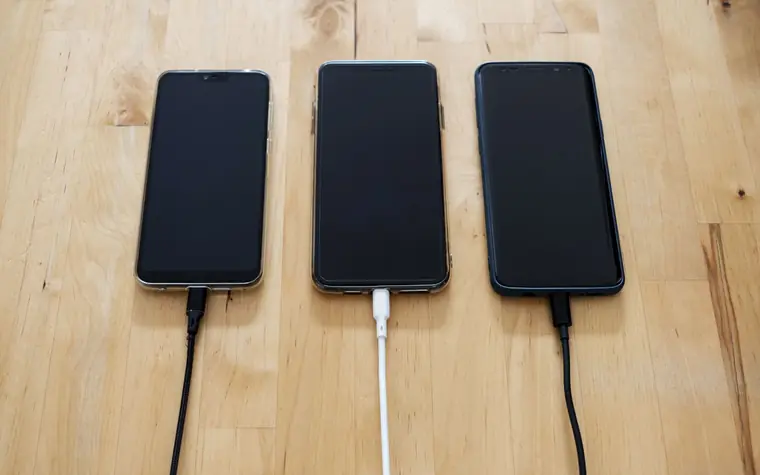
1. The Screen Accounts for Half of Battery Drain
The component that uses the most power in a smartphone is the display. Kept at maximum brightness, the screen alone can eat up nearly half of a day's drain. Indoors, turn on auto-brightness, and if you adjust manually, around 50–60% is generally plenty. Reducing the wait time before the screen turns off (auto-lock) to 30 seconds cuts down the time the screen stays on unattended after you slip it into your pocket.
If your device uses an OLED screen, dark mode becomes a real power saver. Because each OLED pixel emits its own light, the pixel is switched off entirely when displaying black. On an LCD screen, by contrast, the backlight behind it is always on, so dark mode's power-saving effect isn't large.
- iPhone: Settings › Display & Brightness (Dark Mode, auto-brightness), Settings › Accessibility › Display & Text Size › Auto-Brightness
- Android: Under Settings › Display, adjust brightness, dark screen, and screen timeout (the exact names vary slightly by manufacturer)
2. Manage Apps Running in the Background
Apps that refresh your location or pull data in the background even when you're not using them quietly nibble at the battery. Most devices show, on the battery usage screen, a ranked list of which apps used how much. If an app is near the top but you don't use it often, clean up its background activity and notifications.
Location permission in particular is a big drain. Unless it's an app that truly needs it, like maps or delivery, it's better to switch from "Always Allow" to "Allow While Using App."
- iPhone: Check per-app usage in Settings › Battery, Settings › General › Background App Refresh, Settings › Privacy & Security › Location Services
- Android: Settings › Battery › Usage, App info › Battery › Restrict/Optimize, Settings › Location

3. Charging Habits Determine Lifespan
The lithium-ion batteries in today's smartphones age faster the more you repeatedly fill them completely or drain them completely. That's why it's generally understood to be better for lifespan to keep them cycling within the 20–80% range. If minding it every time is hard, turn on the optimized charging (adaptive charging) feature on recent devices. It learns your usage patterns so that even if you leave it plugged in overnight, it pauses around 80% and then tops up to full timed to when you wake.
Another important factor is temperature. Heat is one of the biggest causes of battery aging, so it's best to avoid leaving it for long in a hot car in summer or under direct sunlight. If the device gets hot while charging, briefly removing a thick case can also help. Wireless charging is convenient but tends to run hotter than wired, so when you need a quick top-up, wired charging is better on both heat and speed.
- iPhone: Settings › Battery › Charging › Optimized Battery Charging / Battery Health & Charging
- Android: Settings › Battery › Protect/Optimized charging (labeled "Battery protection," "Adaptive charging," etc. depending on the manufacturer)
4. Check Your Notification and Connectivity Settings Too
Turning off unnecessary app notifications helps save power by reducing how often the screen lights up. Also, in areas with a weak signal the device uses a lot of power constantly searching for a cell tower, so if you're staying in one place for a while, it's advantageous to keep Wi-Fi on. Low Power Mode (power-saving mode), which you switch on when the battery is running low, automatically reduces background activity, automatic email fetching, and some visual effects to stretch the runtime you have left. On iPhone you can turn it on in Settings › Battery, and on Android in Settings › Battery or straight from the quick-settings panel; you can also schedule it to turn on automatically when the charge drops below a level you set.
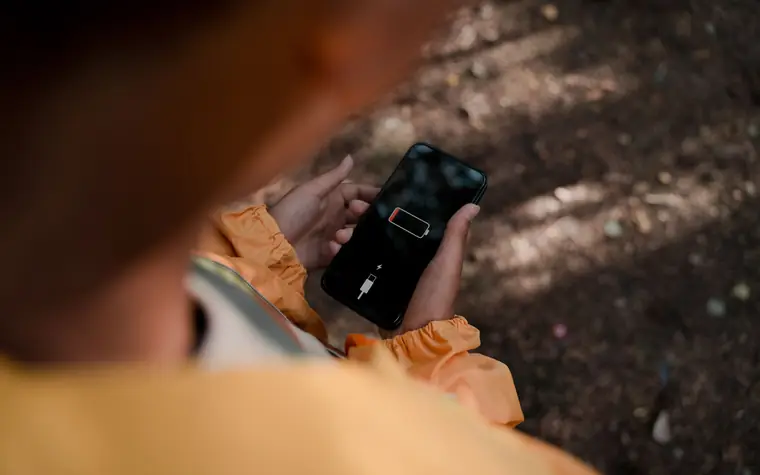
Common Misconceptions
There are widely spread claims about saving power that don't match the facts.
- "Constantly closing apps saves power" — mostly untrue. Even if you swipe an app closed from the recent-apps list, reopening it reloads from scratch, which can actually take more resources. The operating system puts background apps to sleep on its own, so unless an app is misbehaving, there's no need to close it every time.
- "Charging overnight ruins the battery" — today's devices are designed to stop charging once full, and with the optimized charging mentioned earlier turned on, leaving it plugged in overnight isn't a big problem.
- "A new battery must be fully drained and then fully charged at first" — that's a story from the old nickel-based battery era. It doesn't apply to lithium-ion; if anything, repeatedly draining fully is bad for lifespan.
Checking Battery Health
On iPhone you can see the maximum capacity (%) under Settings › Battery › Battery Health & Charging. When this value drops below 80%, it won't last as long as before even fully charged, so it's time to consider a replacement. On Android the diagnostic menu differs by manufacturer, but you can usually check health under the "Battery" or "Device care/Device management" item in Settings.
Frequently Asked Questions (FAQ)
Q. Is it okay to use my phone while charging?
Everyday use is fine. However, doing demanding tasks like gaming or video recording while charging can cause a lot of heat, and heat is bad for the battery. If the device feels hot, let it rest for a bit.
Q. Is it okay to use a non-genuine charger?
A safety-certified product is generally fine. But excessively cheap, uncertified products can have unstable voltage that affects battery life or safety, so it's safest to use products from a manufacturer you can trust.
Q. They say to keep the battery between 20–80% — do I have to mind it every time?
You don't need to. With optimized charging turned on, most of it is handled automatically, and occasionally charging to 100% is no problem either. Just avoid habitually draining to 0% and that's enough.
To sum up, lowering screen brightness, managing background apps, and charging in the 20–80% range are the three keys. I'd suggest changing the settings introduced today one at a time, starting now.
All content is fact-checked under our editorial standards.