
Why Automatic Phone Backup Isn't Working -- iPhone Needs Three Conditions, Android Needs Storage
You go to switch phones and realize your recent photos or messages were never backed up to the cloud. Automatic backup only runs when several conditions line up at once, and those conditions are different on iPhone and Android. Here's which condition is usually missing, and what to check first when storage runs low.
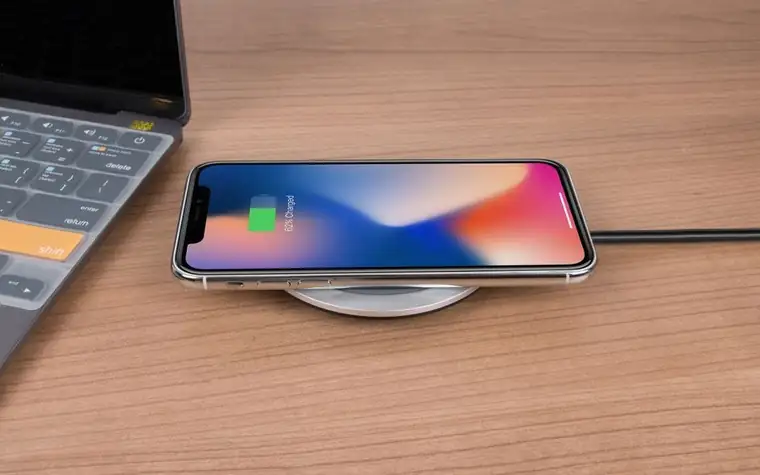
iPhone -- Wi-Fi, power, and lock screen all have to line up
Automatic iCloud backup on iPhone only runs when the device is connected to Wi-Fi, plugged into power, and the screen is locked. If even one of those three is missing, the automatic backup gets postponed. The condition people miss most often is the "screen locked" part. Even if you're charging and connected to Wi-Fi, if you're still looking at the screen or using an app, the backup won't start -- it only kicks in once the screen turns off and locks. You also need to check that Settings → [Your Name] → iCloud → iCloud Backup is actually turned on in the first place; if that switch itself is off, backup never runs no matter how well the other conditions line up. If you want to back up right now, tapping "Back Up Now" on the same screen works regardless of whether the screen is locked. If you're someone who goes days without plugging in, just leaving the charger connected for a few minutes somewhere with Wi-Fi is often enough to get automatic backup running again.
Android -- the conditions are looser
Google One backup on Android has fewer requirements than iPhone. It runs automatically in the background as long as there's an internet connection, regardless of whether the screen is locked or the phone is charging. That said, large files like photos and videos are recommended over Wi-Fi -- you can switch the setting to allow backup over mobile data, but that can burn through your data plan quickly. Device storage matters too. Because uploading files to the cloud also needs some temporary space on the device itself, backups can stall partway through if your phone's storage is nearly full.
The most common cause -- your free storage is full
If every condition checks out and backup still isn't happening, the cloud storage being full is the most likely reason. Apple accounts get 5GB of iCloud for free with no extra payment, and if you take a lot of photos and video, that fills up within a month or two. Google accounts get 15GB by default, but that space is shared across photos, Gmail, and Google Drive documents, so it's not exclusively for photos. When storage fills up, new backups on both platforms quietly stop, and if you miss the notification, you might not realize until months of data has gone unbacked-up. You can check how much each category is using in the settings screen, and from there either clear out old backups and unneeded photos, or add a paid plan to increase storage.
Sometimes the cable is the problem
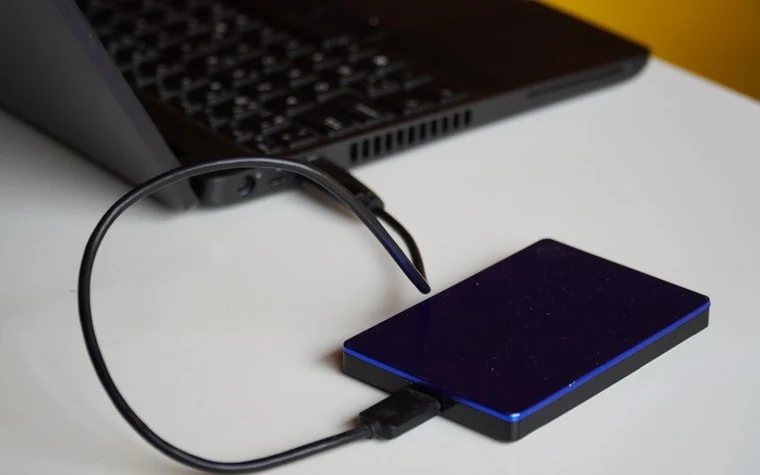
Separately from cloud backup, if you back up by connecting to a PC or Mac with a cable, a bad cable or port can keep the backup from starting at all. A charge-only cable that doesn't support data transfer will let the device register as connected while the backup software never detects it. If that happens, try swapping in the original cable or one confirmed for data transfer first -- if it still doesn't work, try a different USB port or restart the PC and try again. On a desktop rather than a laptop, a rear port wired directly to the motherboard tends to be recognized more reliably than a front-panel port.

If you use more than one account
If you have multiple accounts set up on the device, the account backup is actually tied to might not be the one you're currently signed into. This comes up a lot with secondhand devices or when you're juggling a work account and a personal one. Check the account shown at the top of the iCloud settings screen on iPhone, or the backup target account in the Google One app on Android, and confirm it matches the one you actually use. If the account matches but the last backup date is old, something -- storage, connection, or a setting -- broke at some point, so it's fastest to work back through the checklist above in order.
If you're about to switch phones
A lot of failed backups happen because people try to cram everything in the night before switching phones. Large photo and video libraries can take hours to upload, so it's safer to start the backup at least a day before switching devices and confirm it actually finished. You can check completion status on iCloud through the "last successful backup" label in settings, or on Google One through the backup status screen in the app. After moving to a new device, it's also worth re-checking your identity-theft protection settings in case the phone is ever lost, and before getting rid of your old device, checking whether any personal data is still sitting on it is a good safety step. If you've recently switched carriers or gotten a notice about your name being used for a line, it's also worth checking whether a line was secretly opened under your name while you're at it.
Why you might be missing failed-backup notifications
Both platforms are supposed to notify you when a backup fails, but the notification itself is often turned off or gets buried under other notifications. On iPhone, a failed backup due to low storage just shows up as a red badge on the Settings app, so if you don't open Settings often you might not notice for weeks. On Android, if you haven't installed the Google One app at all, you may not get a notification in the first place -- installing the app is the more reliable way to actually see your backup status. Making a habit of checking the last backup date once a month, directly in settings, limits how long a missed notification can go unnoticed.
Checklist
- On iPhone, confirm Wi-Fi + power connection + locked screen; on Android, confirm an internet connection -- the basic conditions first.
- Check that the backup feature itself is turned on in settings (if it's off, meeting every other condition won't help).
- Check that cloud storage (5GB iCloud, 15GB Google by default) isn't full.
- If backing up by cable, confirm it's a cable that actually supports data transfer.
- If you use multiple accounts, confirm the backup target account matches the one you're actually using.
All content is fact-checked under our editorial standards.