
How to Set Up Two-Factor Authentication (2FA) — Protect Your Account Even If Your Password Is Breached
The era of relying on a single password is over. As it becomes common for ID-and-password combinations leaked somewhere to be plugged straight into automated attacks, you now need a second lock that keeps the account from opening even if the password is breached. That lock is exactly two-factor authentication (2FA). The name sounds grand, but the principle is simple: when you log in, it requires two things together — "something you know" and "something you have."
What 2FA Is — Something You Know + Something You Have
Authentication factors fall broadly into three types: something you know (password, PIN), something you have (phone, security key), and something you are (biometrics like a fingerprint or face). Two-factor authentication combines two different ones of these. The password (something you know) alone isn't enough — you have to add a code coming to your phone (something you have) to complete the login.
The key point is that they are two "different" factors. Even if an attacker gets hold of your leaked password, they can't pass the second gate unless they physically take the phone in your hand as well. Making it so that one broken password doesn't bring down the whole account — that's the reason two-factor authentication exists.
Which Method to Use — A Comparison
There are several ways to deliver the second factor, and each differs in convenience and security. Let's compare three representative ones.
- SMS text authentication: You enter a numeric code that arrives by text when you log in. It needs no separate app, making it the easiest and most widely used. However, texts are relatively vulnerable to interception and SIM swapping (a technique that moves your number to the attacker's SIM), and the code may not arrive abroad or underground where there's no signal.
- Authenticator app (OTP): Apps like Google Authenticator (Google OTP) or Microsoft Authenticator generate a 6-digit code that changes every 30 seconds, on their own. Because the code is computed inside the device without traveling over the network, it's stronger against interception than SMS and works even in airplane mode. In return, it takes some initial effort to install and register the app.
- Security key (hardware key): You authenticate by plugging in or tapping a physical USB or NFC device. It's fundamentally strong against phishing that lures you into entering a code on a fake site, ranking among the safest methods available today. However, you have to buy the device separately, and losing it is a problem, so it's good to keep a spare key alongside.
To sum up, understand it as: SMS is the minimum bar of "far better than nothing," an authenticator app is the balanced choice recommended for most people, and a security key is the top-tier defense for sensitive accounts. Whichever method, having it on is overwhelmingly better than not.
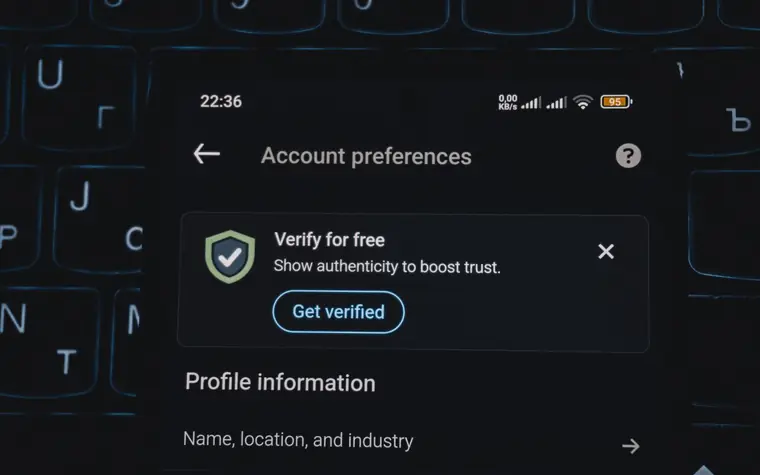
Where You Actually Turn It On — The Setting-Location Idea
The screen differs slightly by service, but the two-factor authentication switch is generally gathered under the "Security" or "Login Security" item inside account settings. The broad framework is similar everywhere.
- In the app or on the web, go My Account → Settings → Security (Privacy).
- Find and turn on an item like "Two-factor authentication," "OTP," or "Secure login."
- Choose an authentication method (text, authenticator app, security key) and register it following the guide. For an authenticator app, you usually link it by scanning the QR code on screen with the app.
- Be sure to save the recovery codes (backup codes) shown at the end.
For domestic services, on KakaoTalk you can turn on two-factor authentication and OTP under the security item in account settings, and on Naver from the "Login Security" menu. Google has the two-factor authentication settings on the "Security" tab of account management, managing the authenticator app, security key, and backup codes all in one place. Menu names can change with redesigns, so it's convenient to get into the habit of searching by the keyword "Security."
Storing Recovery Codes and Preparing for Loss
The spot where accidents happen most often with two-factor authentication is exactly losing or replacing your device. If you lose or reset the phone with your authenticator app on it, you can't generate codes and get locked out of your own account. That's why the recovery codes given at setup are important.
- Don't rely on a screenshot alone for recovery codes — print them out or move them somewhere else that's safe (a password manager, a locked memo). If you keep them only somewhere you have to log in to see, they're useless when you're actually locked out.
- Before you switch phones, transfer the authenticator app from the old device to the new one, or renew the registration for each account. Some authenticator apps offer account backup/sync, so turning it on in advance is convenient.
- If you use a security key, register one spare key and keep it in a drawer. Registering both an authenticator app and text authentication together is also good double-preparation.

Common Mistakes
- Not securing recovery codes: Skipping past them right after setup, then regretting it only after losing the device later, is the most common case.
- Putting every factor on a single device: If you put the password manager, authenticator app, and recovery codes all on the same one phone, the moment you lose that device, every line of defense collapses at once.
- Entering codes into a phishing site as-is: If you hand over your password and SMS/OTP code on a fake login screen dressed up to look real, even two-factor authentication is breached in real time. Be especially suspicious if a link asking for a code arrives by text or email, and it's good to also learn how to spot smishing.
- Thoughtlessly approving an "authentication request" alert: If approval alerts keep popping up repeatedly when you didn't log in, it's a sign that someone is trying to log in with your password. Don't approve — change your password first.
Frequently Asked Questions (FAQ)
If I turn on two-factor authentication, do I have to enter a code every time?
Most services offer "remember this device," so on devices you use often, after authenticating once, they won't ask for a code again for a certain period. The second gate only kicks in when you log in from a new device or an unfamiliar location, so the day-to-day inconvenience is smaller than you'd think.
If I lose my phone, am I locked out of my account forever?
No. You can log in with the recovery codes you saved in advance, or get in through a backup method like text authentication. If you have no backup means at all, you'll have to go through the service's account-recovery procedure, which can take time — so having recovery codes and a backup authentication method ready in advance is the best approach.
Is turning on just SMS authentication enough?
It's far safer than not turning anything on. But since texts are relatively vulnerable to interception and SIM swapping, we recommend moving to an authenticator app when you can and adding a security key for important accounts. What matters is the practice of turning on something right now, over perfection.
All content is fact-checked under our editorial standards.